Role Overview: Payer Admin
A Payer Admin manages application approvals on behalf of a data provider. This role includes:
- Reviewing submitted applications
- Making approval or rejection decisions
- Managing visibility of approved credentials
- Revoking access when necessary
Becoming a Payer Admin
Before requesting Payer Admin access, the user must first be registered on the OnyxOS Registration Portal as a Developer, Payer, or Provider and must have completed the full account setup process.
Once the account is active, the user must email Onyx with the following details:
- Registered Email Address
- Username
- The name of the Data Provider for which they wish to be assigned as Payer Admin
Onyx will verify the submitted details and, upon confirmation, assign the Payer Admin role to the user account.
Switching to Payer Admin Role
Once Payer Admin access has been granted, the user can switch to the Payer Admin role directly from the portal.
After logging in, navigate to the Dashboard and click on the Profile tab. Under the Profile tab, a Switch to Payer Admin Role option will be visible. Clicking this option will switch the account to Payer Admin mode, giving access to the Payer Admin Dashboard where applications can be reviewed, approved, or rejected.
Payer Admin Dashboard
Dashboard Overview
After successful login, a Payer Admin can view all applications from organizations where they are designated as Payer Admin for that data provider.
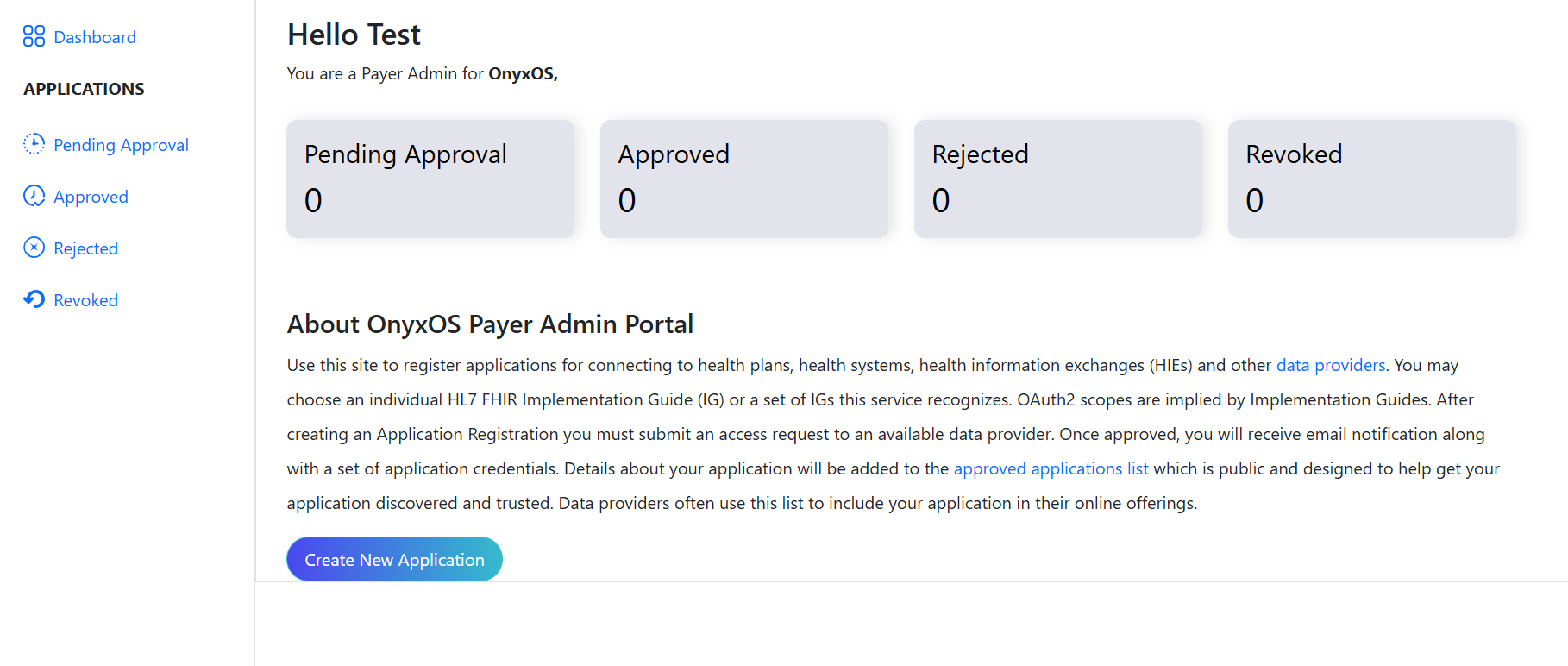
The dashboard contains four main tabs, Clicking on each tab will navigate to the respective pages:
- Pending Approval
- Approved
- Rejected
- Revoked
Application Categories
Each primary tab is further divided into application-specific sub-tabs. Only applications relevant to the selected tab are shown.
Application Types:
- Patient Access API
- Payer-to-Payer Data Exchange
- Provider Access API
Application Review and Management
Pending Approval
-
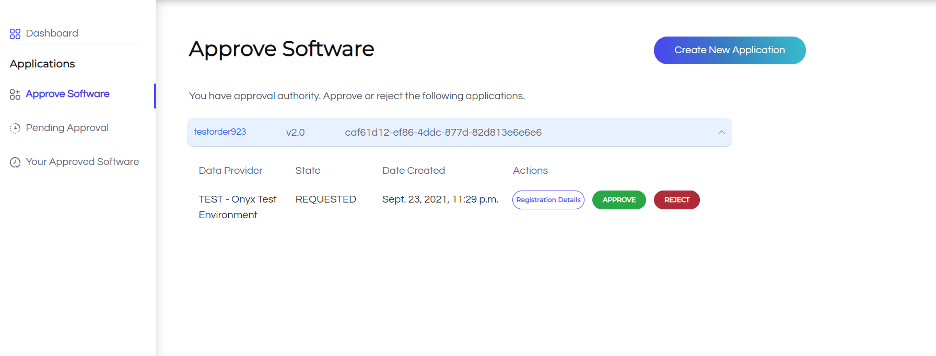
As a Payer Admin, under the Pending Apps tab, you’ll see all applications awaiting your review.
-
For applications belonging to data providers you have approval privileges for, clicking on an entry will display the Registration Details, Approve, and Reject buttons, allowing you to review and take action accordingly.
-
Payer Admins can review each application’s registration details and choose to approve or reject the request.
-
When a Payer Admin approves an application , the application is registered in the data provider’s backend and retrieves the registration credentials. These credentials are then used to authenticate with the data provider when attempting to retrieve data.
-
When a Payer Admin rejects an application, the application is moved to the Rejected tab.
-
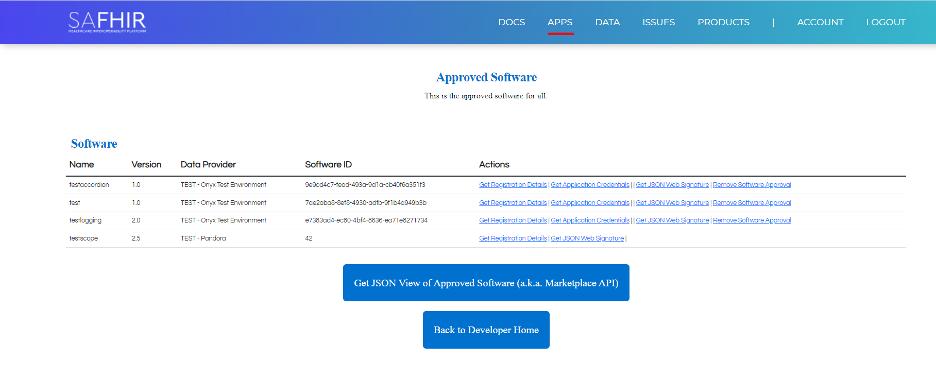
The approved application will be added to the master list of approved applications, which is displayed on the APPS page.
Notes:

-
Selecting either to approve or reject will refresh the page and after a few seconds a confirmation message will appear under the navigation bar.
-
An application approval/rejection generates an email notification to the application creator. The email does not contain any identity information about the Payer who approved/rejected the application.
Approved
This section displays applications that have been approved.
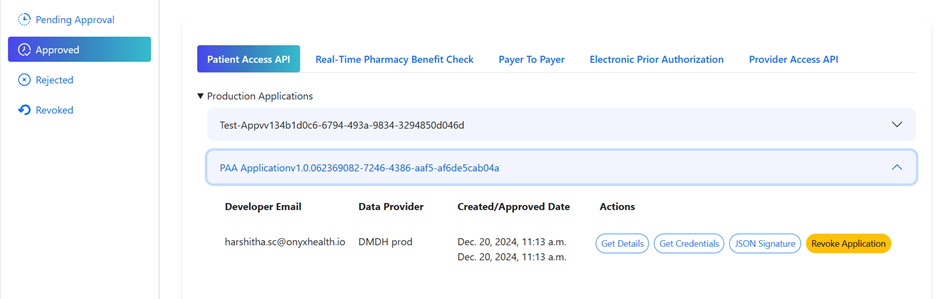
- Payer Admins can view application credentials and revoke application access for any applications created under the data provider(s) for which they have approval privileges.
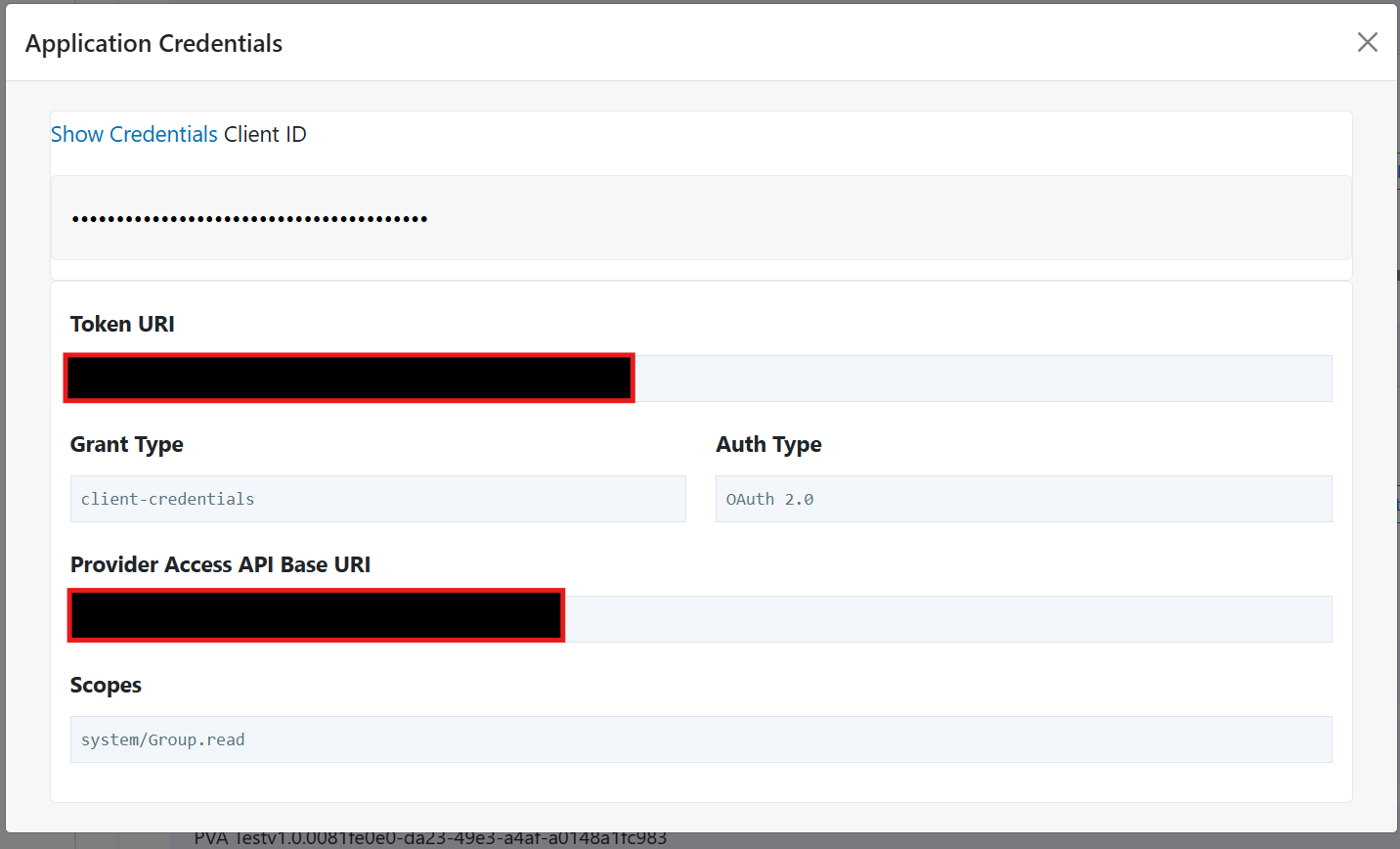
Note: The Payer Admin can view full application details, but only the client ID is visible. The client secret is not exposed.
Tip: Left-click on any field to copy its value to your clipboard.
Rejected
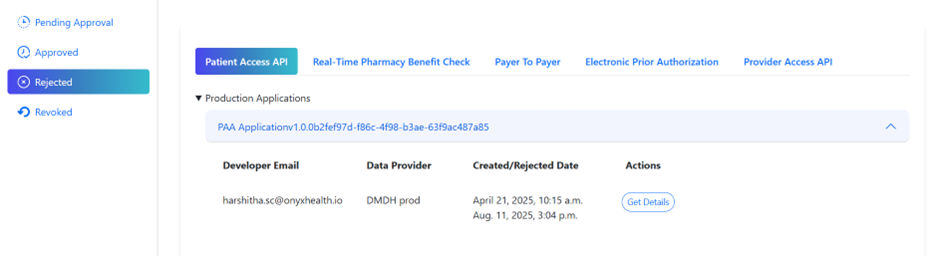
This section lists applications that were denied approval.
Revoked
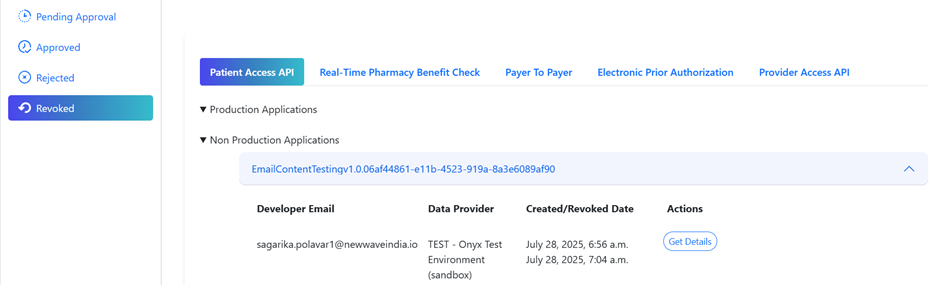
This section lists applications whose access was revoked after approval.
Best Practices for Payer Admins
- Regularly monitor the Pending Approval tab to avoid processing delays
- Keep login credentials secure and do not share them with anyone
- Periodically review approved applications for ongoing security compliance
- Verify application details thoroughly before approving access